esp-emu Rust Based ESP32 Emulator
Wednesday, September 30th, 2026
The last few months has seen a switch over to maintaining a piece of ESP32 firmware (for the ESP32 Pico D4). The work involved development of the firmware itself along with improvements to the development process and tools.
Several personal projects also needed some attention and these run on the ESP32-P4 microcontroller.
Developing firmware presents some unique challenges most obvious is the requirement of specialist hardware and the time it can take to deploy firmware to a device for testing.
The cost of hardware debuggers has certainly decreased over the past 20 years. Hardware is now affordable and the tools to use the hardware are generally available for all of the major operating systems. The one thing that has not really changed over the years is the time it can take to deploy firmware for testing. Depending upon the hardware platform and the size of the application, deployment can take anything from a few seconds to several minutes.
This is where hardware emulation can help.
Emulating the ESP32 with QEMU
The two ESP32 microcontrollers identified both use different Instruction Set Architectures (ISAs), the ESP32 Pico D4 has dual Xtensa cores while the ESP32-P4 has dual RISC-V cores. Espressif has offered two QEMU emulators for a while:
- qemu-espressif-xtensa
- qemu-espressif-riscv
Documentation regarding using these emulators is available on the Espressif QEMU web pages.
A third option presented itself when searching for emulators for the ESP32-P4, esp-emu.
ESP32-P4 and esp-emu
According to the GitHub repository, esp-emu is a rust based emulator for ESP32 series of microcontrollers. The range of chips supported is fairly extensive but interestingly does not include some of the earlier ranges of Xtensa based microcontrollers. The only Xtensa microcontroller supported appears to be the ESP32-C3.
The target hardware containing the ESP32-P4 is the M5Stack Tab5. This is a fairly affordable and capable ESP32 prototyping / development platform with a wide range of peripherals on board. In fact the range of peripherals looks impressive for an emulator.
ESP32-P4 Chip Revisions
The ESP32 IDF distinguishes between two classes of chip:
- Pre-V3 chips
- V3 and above
All of the ESP32-P4 in my stock are pre-V3 chips and the emulator will need to be run with this configuration in mind. By default, the emulator seems to run as a V3 and above chip.
ESP32-P4 Protected Mode Example
To test the emulator we need a test application, this protected mode application is the target for this test. The application splits the application into two distinct parts:
- M-Mode component that has full access to the system resources
- U-Mode component that provides the main application and has restricted access to system resources
This application runs in a similar way to a modern operating system. The M-Mode component is effectively the kernel and is trusted with access to the full machine resources. The U-Mode component is the equivalent of an application that uses the kernel to access resources. This split keeps the trusted kernel separate from the user application.
This application tests a limited number of chip features, the core RISC-V chip, PSRAM and the console output.
Building the Firmware
Following the notes in the repository we need to do the following in order to build the firmware:
- A clone of the protected mode application repository
- ESP-IDF 5.5.4 is installed and active
- Run the build.sh script file
At the end of this process we have an application that runs on the Tab5.
=== ESP32-P4 protected-mode demo: M-mode kernel, U-mode user ===
KERNEL: mstatus=00010088 mtvec=4ff00003 mintstatus=00000000
KERNEL: pmpcfg 0=809d9b9b 1=8d808b8d 2=80000089 3=9b8b8d8b
KERNEL: IRAM text ends at 4ff0fa00; PMP entry 4 grants U-mode R+X below it
KERNEL: user text 4ff01d86 (inside the U-mode execute grant)
KERNEL: 8 U-mode windows, NONE of them pinned, sharing that one user_main:
KERNEL: user0 arena 4ff40000..4ff42000 (8192 bytes, stack and data)
KERNEL: user1 arena 4ff42000..4ff44000 (8192 bytes, stack and data)
Now to try the emulator. The first step is to produce a binary image containing all of the components that make up an ESP32 deployment, namely, bootloader, partition table and the user firmware. This is achieved with the command idf.py merge-bin. This results in a file merged-binary.bin in the build directory.
EFuse
The protected mode firmware is running on the Tab5 hardware which as already noted is running a Pre-V3 chip. This requires that the emulator is configured as a pre-V3 chip. This is done by creating an efuse.bin file. The protected mode application and the esp-emu repository both contain the script make-efuse.py that will make the file ready for the emulator. For the ESP32-P4 the command is:
make-efuse.py --chip esp32p4 --chip-rev 1.3 -o efuse.bin
We are now at the stage where we can finally run the emulator:
esp-emu --chip esp32p4 --firmware build/merged-binary.bin --psram-size 32M --rom ~/.espressif/tools/esp-rom-elfs/20241011/esp32p4_rev0_rom.elf --efuse efuse.bin
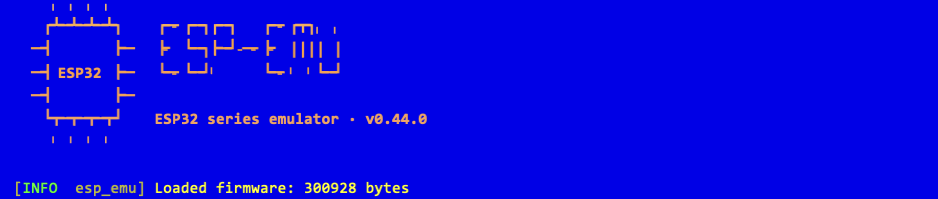
This results in the following in the terminal:
    ╻ ╻ ╻ ╻
   ┏┻━┻━┻━┻┓    ┏━╸┏━┓┏━┓   ┏━╸┏┳┓╻ ╻
  ━┫       ┣━   ┣╸ ┗━┓┣━┛╺━╸┣╸ ┃┃┃┃ ┃
  ━┫ ESP32 ┣━   ┗━╸┗━┛╹     ┗━╸╹ ╹┗━┛
  ━┫       ┣━
   ┗┳━┳━┳━┳┛    ESP32 series emulator · v0.44.0
    ╹ ╹ ╹ ╹

[INFO  esp_emu] Loaded firmware: 300928 bytes
[INFO  machine] WiFi SoftAP: WPA2-PSK enabled for SSID 'myssid'
[INFO  net_user] user-net: DNS forwarder upstream [192.168.1.1:53], restrict=false
[INFO  net_user] user-net: backend ready (gateway 192.168.4.1, 0 hostfwd rules)
[INFO  esp_emu] Network backend: user-mode (smoltcp NAT, 192.168.4.1 -> host loopback)
[INFO  esp_emu] Loaded ROM ELF: /Users/markstevens/.espressif/tools/esp-rom-elfs/20241011/esp32p4_rev0_rom.elf (243316 bytes)
[INFO  esp_emu] Booting from real ROM reset vector (use --skip-rom to bypass)
[INFO  machine] ROM ELF: 2083 symbols loaded
[INFO  machine] ROM ELF loaded, 14 functions patched for interception
[INFO  esp_emu] Loaded eFuse file: 336 bytes
[INFO  machine] PSRAM configured as 32768 KB
[INFO  machine] CPU reset at ROM entry: PC=0x4FC00000, SP=0x4FFBCFC0
[INFO  esp_emu] Starting emulation (chip=esp32p4, batch_size=50000)
ESP-ROM:esp32p4-20230811
Build:Aug 11 2023
rst:0x1 (POWERON),boot:0x8 (SPI_FAST_FLASH_BOOT)
SPI mode:DIO, clock div:2
.
.
.
I (371) main_task: Calling app_main()

=== ESP32-P4 protected-mode demo: M-mode kernel, U-mode user ===
KERNEL: mstatus=00000089 mtvec=4ff00003 mintstatus=00000000
KERNEL: pmpcfg 0=0b000d00 1=00000b00 2=00000000 3=00000000
where the three periods represent redacted standard bootloader ESP-IDF boot sequence output.
Conclusion
Emulation be it QEMU or the newer esp-emu emulators offer a great way to quickly develop core functionality without the need for hardware. Using mocks for hardware as described in Test Driven Development for Embedded C: Building High Quality Embedded Software (Pragmatic Programmers) can also get some way to implementing some hardware functionality quickly and efficiently.
Emulation can also help improve code quality by implementing a number of tests in a CI system.
Next steps, investigate the emulated hardware features.