RSS

Posts Tagged ‘Software Development’

Windows Application Communicating with Netduino Over USB

Saturday, May 28th, 2011

Whilst the Netduino Plus has the advantage of being able to communicate with a PC by networking, the Netduino and the Netduino Mini do not have this capability built in. The simplest way of communicating with these two devices is probably by a serial connection. Both of these devices differ in the capabilities, one has two TTL COM ports whilst the other (the Netduino Mini) has a RS232 COM port and a TTL COM port.

This article discusses the connection using the TTL COM port to a PC using a USB connection. This is applicable to the Netduino, the Netduino Plus and the Netduino Mini.

USB Connection

Before we can start to write any software we need to make the physical connection. There are a few options available, a breakout board which converts the USB connection into a serial connection or a cable which has the conversion hardware built in. I went for the later option as this seemed simpler. The cable I purchased was the FTDI 5V VCC 3.3V IO cable. Plugging this cable into the PC installed new drivers (on Windows 7) and created a new COM port for me.

Connecting the cable was simple, The ground on the cable connected to the ground on the Netduino. The Tx and Rx connections needed to be crossed. So Rx on the cable went to the Netduino digital pin 1 and Tx on the cable connected to Netduino digital pin 0.

Software

This solution requires two projects, a Windows Forms application and a Netduino application.

Windows Form Application

This application will simply send commands in the form of lines of text down the serial port to the Netduino. Each command will terminate with a r character. This application is simple and mimics sending a command to turn an LED on or off.The application looks like this:
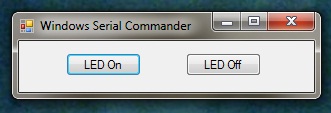
Windows Serial Interface

Windows Serial Interface

Clicking the LED On button sends the string LED=1 down the serial line to the listening device. Similarly, clicking on LED Off button sends the command LED=0 to the device.

The code to achieve this is trivial and there are only three parts, the first is to create the connection (see MainForm_Load) and the second and third parts send the command to the device (see btnLEDOn_Click and btnLEDOff_Click).

/// <summary>
/// Initialise the application.
/// </summary>
private void MainForm_Load(object sender, EventArgs e)
{
	com6 = new SerialPort("COM6", 9600, Parity.None, 8, StopBits.One);
	com6.Open();
}

/// <summary>
/// Send a command to the device listening on the com port.
/// </summary>
private void btnLEDOn_Click(object sender, EventArgs e)
{
	com6.Write("LED=1\r");
}

/// <summary>
/// Send a command to turn the LED off.
/// </summary>
private void btnLEDOff_Click(object sender, EventArgs e)
{
	com6.Write("LED=0\r");
}

Netduino Application

The Netduino application is a little more complex as it has to listen to the serial port and assemble a buffer containing the commands being received. The achieve this I abstracted the serial port processing into a separate class. This class took care of listening to the serial port and building up a beffer. The class then provided a way of reading a line of text from the buffer and presenting this to the caller as a single entity. The main code for this is contained in the class CommPort and can be found in the SerialComms.cs file in the attached project.

The main program loop becomes a simple affair and looks like this:

public static void Main()
{
    CommPort port = new CommPort(SerialPorts.COM1, BaudRate.Baudrate9600, Parity.None, 8, StopBits.One);
    while (true)
    {
        string text = port.ReadLine();
        if (text.Length != 0)
        {
            Debug.Print("Command: " + text);
        }
        Thread.Sleep(1000);
    }
}

To run the code I compiled the Windows Form application and then navigated (using Windows explorer) to the directory containing the executable. Double clicking on this started the application and opened the COM port. Next I deployed the Netduino application to the Netduino and with the debugger attched I clicked on the LED On button in the Windows application. A short time later the text Command: LED=1 appeared in the debug window.

The code for this project can be found here (WinFormSerialExample.zip).

Netduino and Bluetooth (RN-42)

Sunday, April 24th, 2011

After many a hour playing (and swearing) I think I have now managed to get the Netduino talking to a Bluetooth module in command mode. There were many teething problems along the way but I think the source code which is attached along with the notes should allow the reconfiguration/control of the Bluetooth module from the Netduino.

Objective

There were two objectives for this project, namely

  1. Allow a PC to send data to the Netduino over a Bluetooth device
  2. Provide a mechanism for the Netduino to reconfigure a Bluetooth device

This is a mainly software project as the connections are straightforward.

The Hardware

The Bluetooth module chosen was a Roving Networks RN-42. This device can be found on a breakout board on several hardware sites (Proto-Pic or Sparkfun) and provides a simple COM connection to the Netduino.

Wiring up the module was simple, only six connections to worry about 🙂

  1. CTS and RTS – connect these together.
  2. Vcc – connect to 3.3V
  3. GND – connect to ground (make sure this is connected to the ground on the Netduino as well)
  4. TX – connect to RX on the Netduino (I was using COM1 so connect to RX on the Netduino – Digital pin 1)
  5. RX – connect to TX on the Netduino (I was using COM1 so connect to TX on the Netduino – Digital pin 0)

There were a few teething problems along the way. The major issue was that at the time I was not able to get access to the correct documentation for the module. A little persistence and I finally had it.

So the first task was to get the module talking to my PC. Powering on the module and then getting my PC to search for Bluetooth device was simple. The PC found the device and paired without much fuss. I opened PuTTY and set the COM port parameters and I was talking to the module.

This is where it started to get interesting (i.e. frustrating) as I had missed a crucial part of the documentation. In order to enter command mode you must enter the command string within 60 seconds of the module being powered up. Once I had this figured it was a doddle. PuTTY allowed me to enter commands and displayed the responses.

So at this point I knew I had a working Bluetooth module and it could connect to the the PC in both data and command mode.

Software

The next problem was to bring the module under the control of the Netduino. This required the a few design decisions. The module can return both single and multi-line responses to commands.

The simplest problem was the single line response. The system simply looped until a line of data was returned.

For the multi-line response it was necessary to allow the system some processing time. The approach taken was to allow the user to specify a wait time. This would allow the Bluetooth module to fill the buffer with response to the command. This puts the Netduino to sleep far a while. Again, this was considered acceptable as the system would be configuring the Bluetooth module – i.e. a startup overhead rather than a run-time overhead.

Usage

The library is pretty simply to use with the constructor taking the parameters needed to create a new instance of the class and connect it to the Bluetooth module and the few remaining public methods allowing the user to talk to the module.

Constructor

The public constructor takes five parameters which essentially allow the class to configure the serial port used to communicate with the module.

public RovingNetworks(string port, BaudRate baudRate, Parity parity, int dataBits, StopBits stopBits)

EnterCommandMode

This method switches the module into command mode. It must be called within 60 seconds (if using default configuration) of the module being turned on.

ExitCommandMode

This method returns the module to data mode.

This methods has two variants. The first is used for simple commands and returns a single string which is the one line response from the module. The second is for more verbose commands where more than one line is returned from the module.

For the majority of commands only one line of test is returned and so the simple one line method can be used. This will loop until a response has been received by the system. This response is then returned to the user.

public string SendCommand(string command)
{
    string result;

    ClearBuffer();
    _bluetoothModule.Write(Encoding.UTF8.GetBytes(command), 0, command.Length);
    result = ReadLine();
    while (result == "")
    {
        result = ReadLine();
    }
    return (result);
}

The second method assumes a multi-line response from the command. In order to collect these responses together the system pauses a while. It is important that this pause is long enough for the module to process the command and generate the response but not too long as this will block the thread for the specified timeout period.

public ArrayList SendCommand(string command, int timeout)
{
    ArrayList result;
    string line;

    ClearBuffer();
    result = new ArrayList();
    _bluetoothModule.Write(Encoding.UTF8.GetBytes(command), 0, command.Length);
    Thread.Sleep(timeout);
    line = ReadLine();
    while (line != "")
    {
        result.Add(line);
        line = ReadLine();
    }
    return (result);
}

Example

The following small program shows the execution of a single command which returns some configuration information for the module.

RovingNetworks rn42;

rn42 = new RovingNetworks(Serial.COM1, BaudRate.Baudrate115200, Parity.None, 8, StopBits.One);
if (rn42.EnterCommandMode())
{
    Debug.Print("Success");
    ArrayList result = rn42.SendCommand("Drn", 500);
    foreach (string str in result)
    {
        Debug.Print(str);
    }
    Thread.Sleep(Timeout.Infinite);
}
else
{
    Debug.Print("Oh dear...");
}

The code is available RN 42 Bluetooth Source Code There’s not a lot of it and it’s reasonably well commented so we’ll call it a day.

Edit (25th April 2011): Implemented IDispose and updated the source code.

Silverlight 5 Beta

Thursday, April 14th, 2011

Looks like Microsoft have released the beta of Silverlight 5. Details of the new features can be found here.

Debugging data binding ! Finally 🙂

Developers Like New Toys

Friday, December 31st, 2010

So it has been a week or so since Visual Studio 2010 was released in the wild and the verdict is that it is a great step forward.  It is amazing how simple things like pinable data tips make your life as a developer a lot easier.

One thing I have found irritating is the fact that you need Sharepoint installed in order to use the reporting facilities in Team Foundation Server (TFS).  This is not so much of a problem in a team environment as you are normally using servers to host TFS but it is a bind in a single developer environment.  For those of you who are not aware, Sharepoint will not install on Vista or Windows 7 running on a 32 bit machine.  This is a problem for me when experimenting as the environment where I test my ideas before implementing them is Windows 7 32-bit.  Looks like I’ll be rebuilding an old 64-bit machine in the near future.  On the up side, it will allow me to look at Sharepoint 2010 which has recently been added to MSDN.  As I say, all developers like new toys :).

Update: 25/04/2010

A recent blog posing by Shai Raiten suggests that Sharepoint can be installed on Windows 7 32-bit.  At the end of the post it suggested that an advanced installation was possible (note the Advanced button is highlighted) but this generated several errors.  I have since read the full article on Bamboo Solutions web site and followed their instructions and I now have WSS3.0 SP1 installed on my laptop.  Now all I have to do is get the reporting services working.

SIlverlight 4 Training Kit

Sunday, April 25th, 2010

Microsoft have released a training kit for Silverlight 4.  This is available online (through Channel 9) or as an offline download.

Tech Days in the North

Saturday, April 17th, 2010

Thursday this week found me attending a technical community day just outside Leeds.  The event was organised by Black Marble and covered the recent Visual Studio 2010 launch.  The morning saw an overview of the tools by Matt Dunn from Microsoft along with a demonstration of Team Foundation Server features and how they integrate into the software development life cycle.  The highlight of the day was a talk by Jesse Liberty covering Silverlight.  Whilst light on technical content his talk was very entertaining covering his introduction to Microsoft and the evolution of Silverlight.  If you get the chance I would recommend that you take the time to attend one of his presentations as he is a very entertaining presenter.

Visual Studio 2010 Released

Tuesday, April 13th, 2010

OK, so I’m a day late on this one but then I have had my hands full uninstalling the release candidate and updating to the full version.  A fairly comprehensive overview with links can be found on Scott Gutherie’s blog.

The Express editions can be downloaded from the Microsoft Express Website.